Recent Work
Here's just a taste of what we have to offer.
Good Vibrations
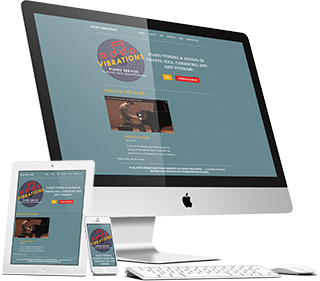
Good Vibrations
- Responsive Web Site
- Local Company
- Informational Web Site
- Logo and Branding
Miller Bee Supply

Miller Bee Supply
- Local Company
- E-Commerce Web Site
Watauga Humane Society
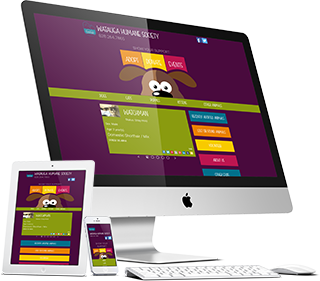
Watauga Humane Society
- Responsive Web Site
- Local Non-Profit
- Informational Web Site
- Custom Management Solutions
Services We Provide
If you can dream it, our team can build it.
Branding
Starting a new company? Sprucing up an old one? Or just want a fresh face for your business? Let us help! From artwork to web design, we can give your business the branding it needs to make an impact.
Development
The team at KSPCS will work with you to develop and maintain your website so you don’t have to. We strive to provide personalized, non-automated service to you and your business.
Design
We have professional graphic designers on staff who can design everything from brand logos to book covers. Let us work with you to bring your vision to life.
Marketing
We can help boost your social media presence, as well as design a marketing campaign that will attract customers to your business, all custom designed to meet your needs.
Get in Touch
KS Professional Computer Solutions
159 Winklers Creek Rd
Boone, NC 28607, USA.
Boone, NC 28607, USA.